
User guide
Agro Solution, step by step
The basics of each part of Agro Solution. Your advisor walks you through all of this on your first meetings.
01
Signing in
Every ranch has its own address, like yourranch.agrosolution.com. You get it by email when your account is ready.
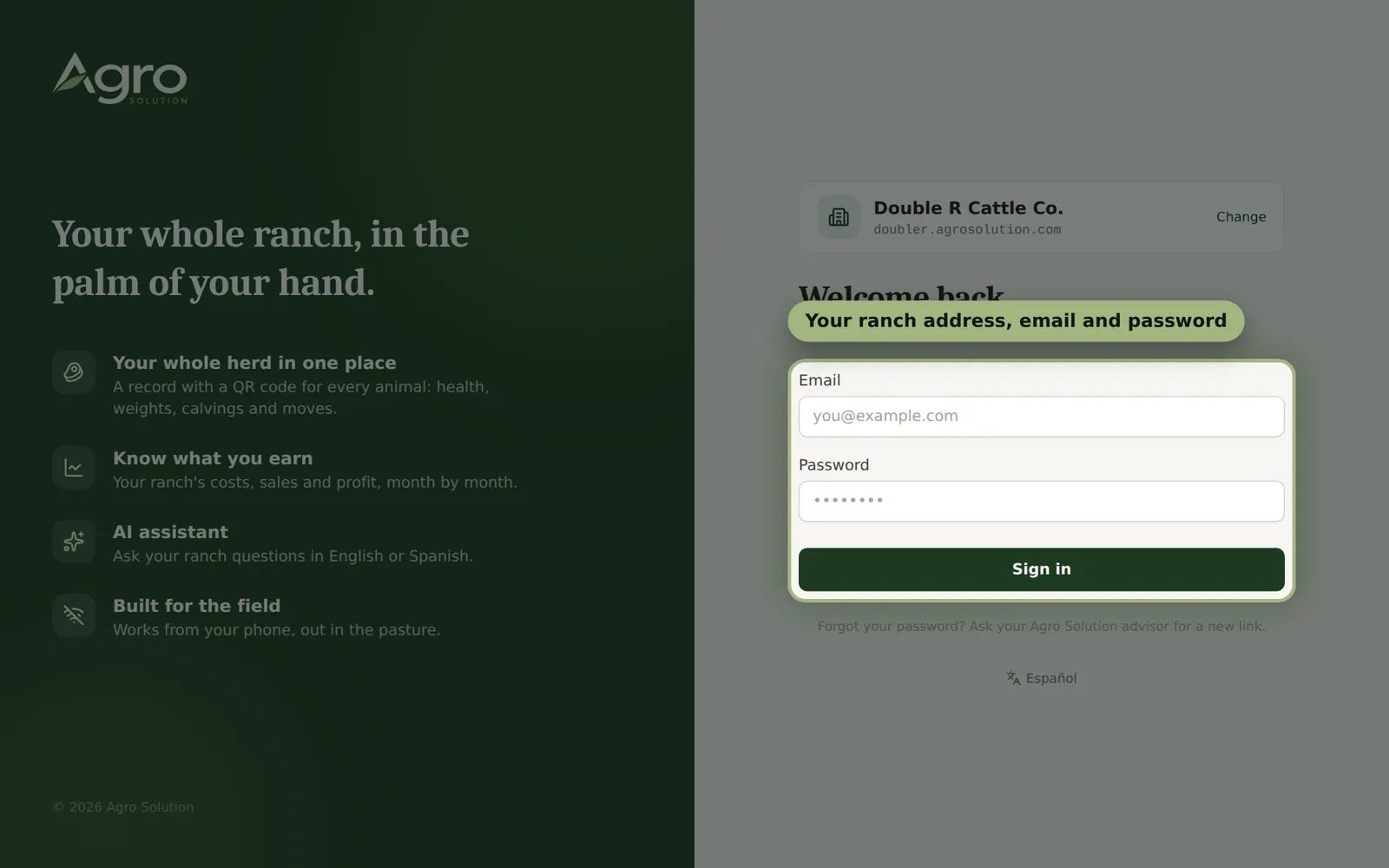
- 1Open the activation link from your welcome email and create your password (the owner also confirms the ranch address).
- 2From then on, go to your ranch address and sign in with your email and password.
- 3On your phone, open the app in the browser and choose “Add to Home Screen” so it works like an app.
- 4Forgot your password? Ask your advisor for a new link.
02
Your team and roles
Each person has their own login and only sees what their role allows.
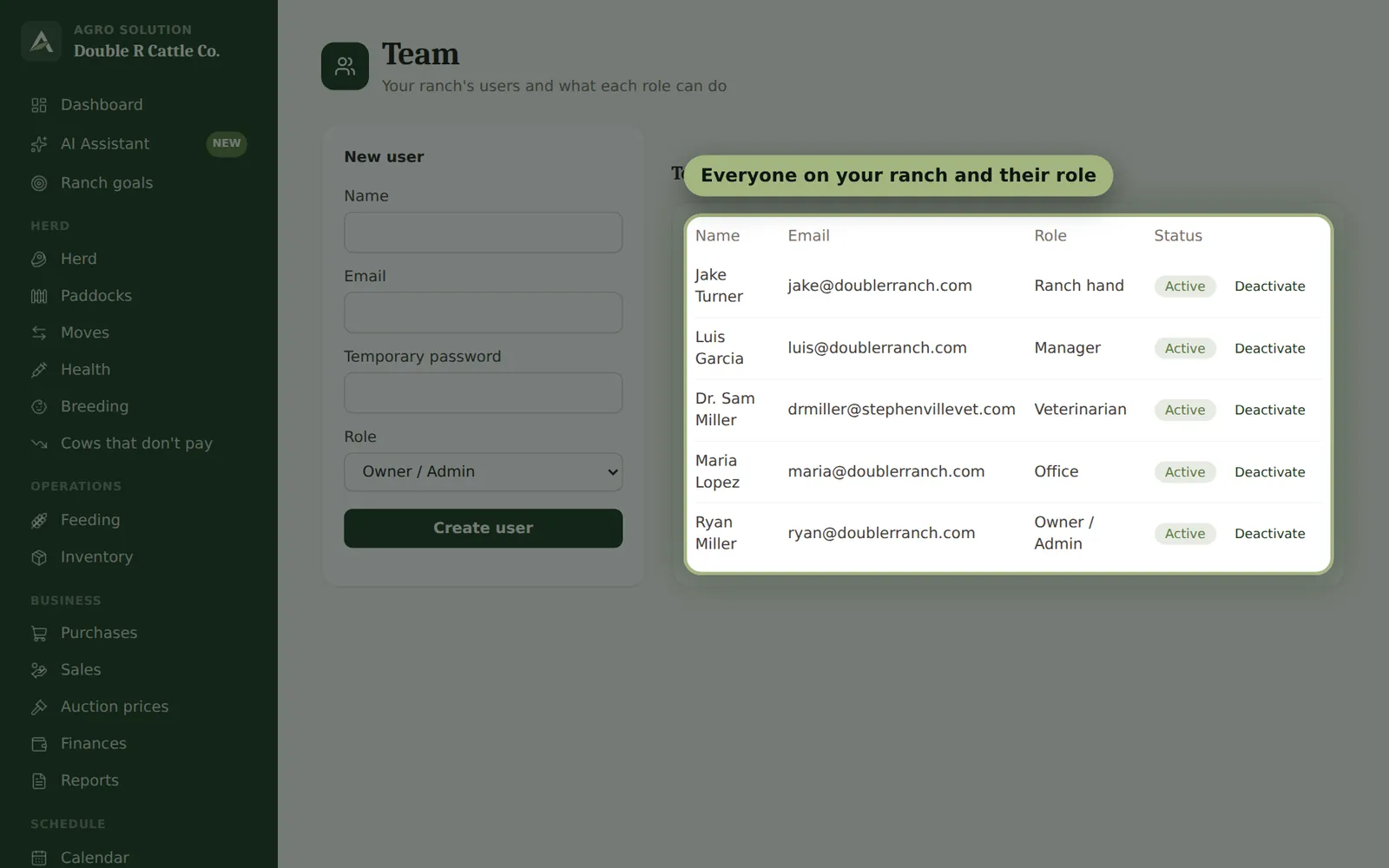
- 1Owner/administrator: everything, including finances and settings.
- 2Office, vet, manager and ranch hands: each can record only their part (for example, the vet records health and breeding).
- 3Your advisor adds people to your ranch; in “Team” you see who has access and what each role can do.
03
Herd
The record of every animal: ear tag, breed, age, paddock, weights, health and photos.
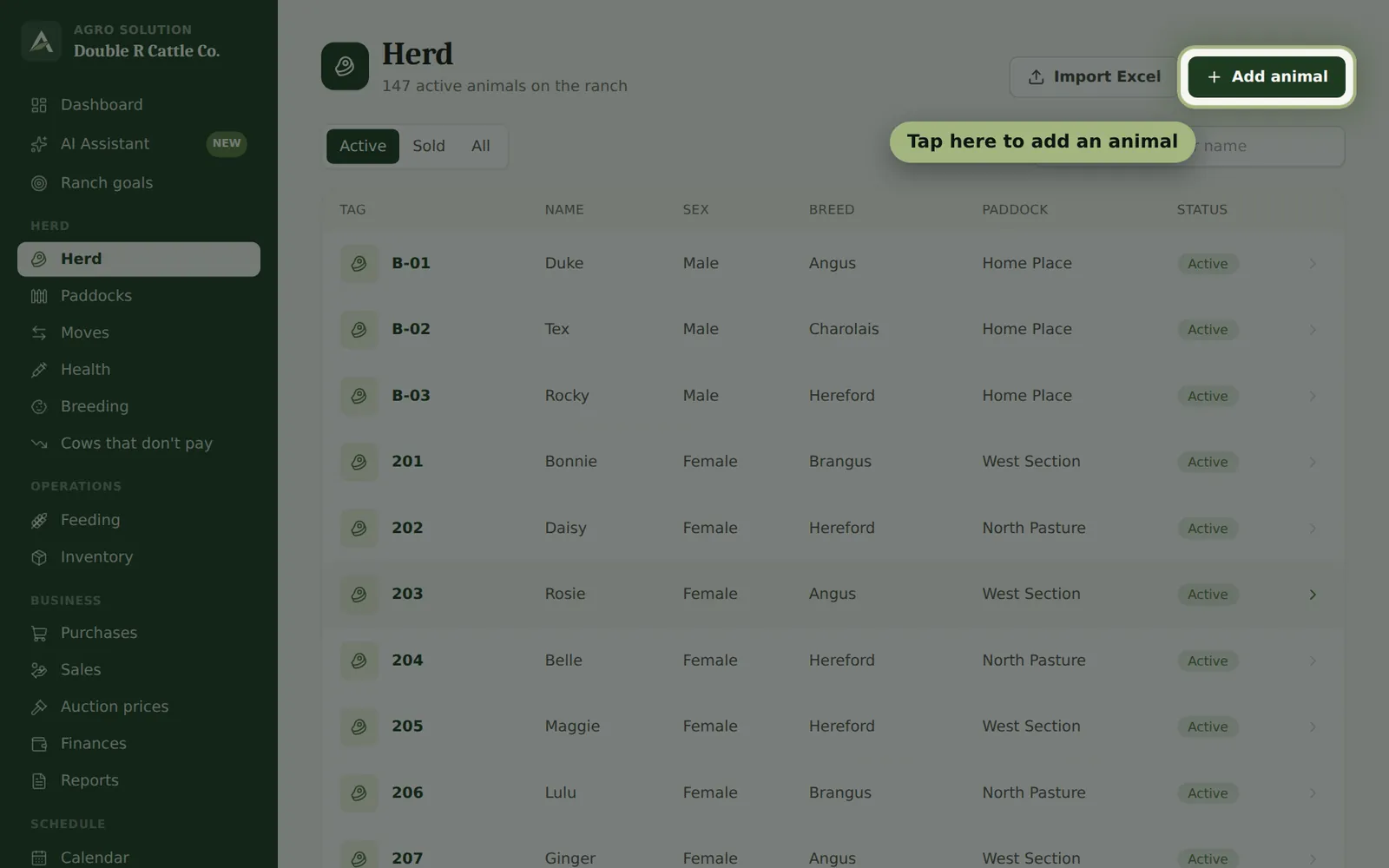
- 1Go to “Herd” and tap “Add animal”. Only the ear tag, sex, entry date and entry type are required.
- 2Open any animal to see its full history, weight chart, photos and QR code.
- 3Print or save the QR code; scanning it in the pen opens a quick form to record a weight, treatment or move.
- 4Have your records in Excel? Use “Import data” or send them to your advisor.
04
Health and withdrawal
Vaccines, deworming, treatments and vet checks, with reminders.
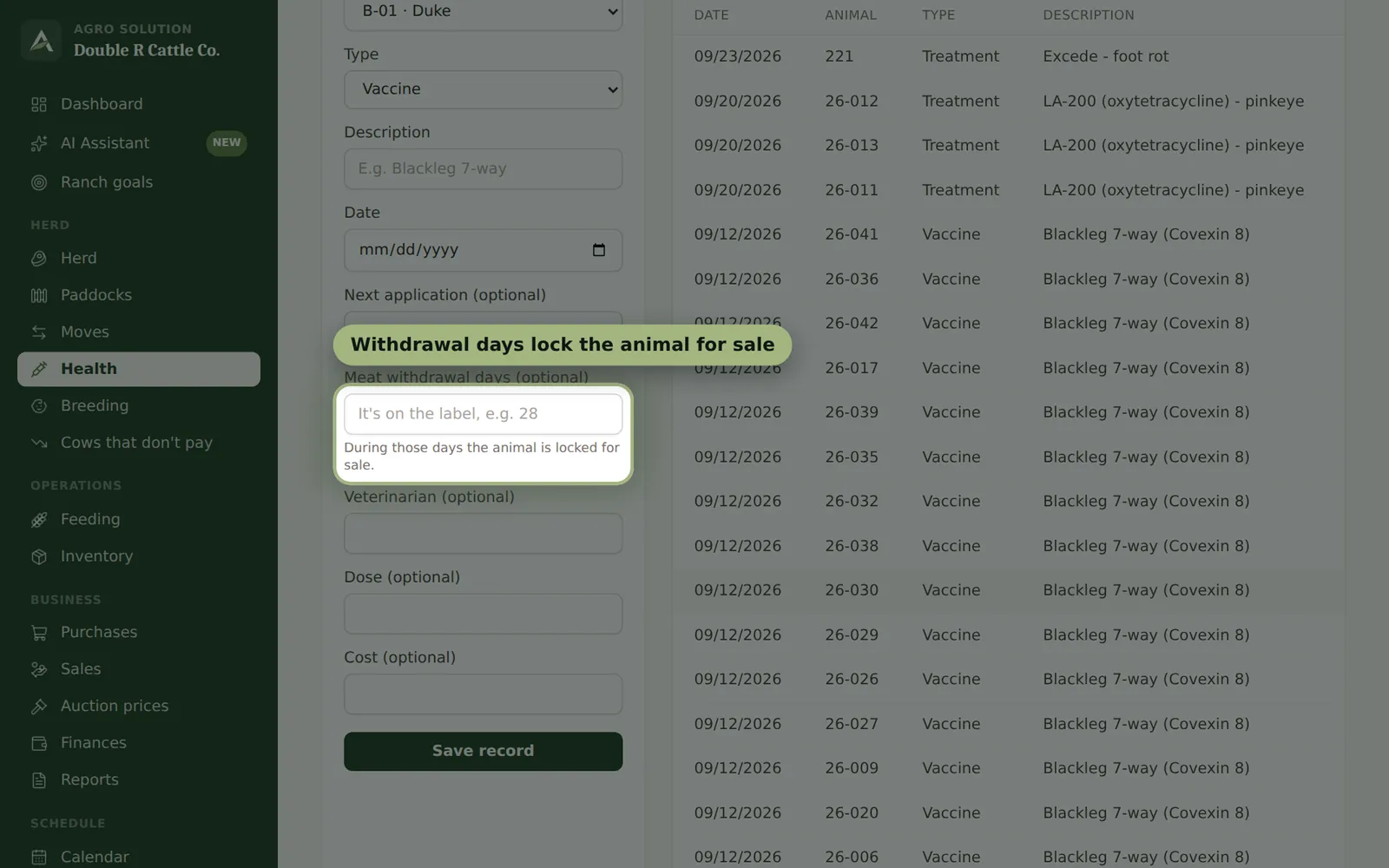
- 1In “Health”, choose the animal, the type and the product. Add the next application date to get a reminder.
- 2For treatments, enter the withdrawal days from the label: the animal is locked for sale until it's clear.
- 3Overdue applications show up on the dashboard and in alerts.
05
Breeding and calving
Services, pregnancies and births, so you know when each cow is due.
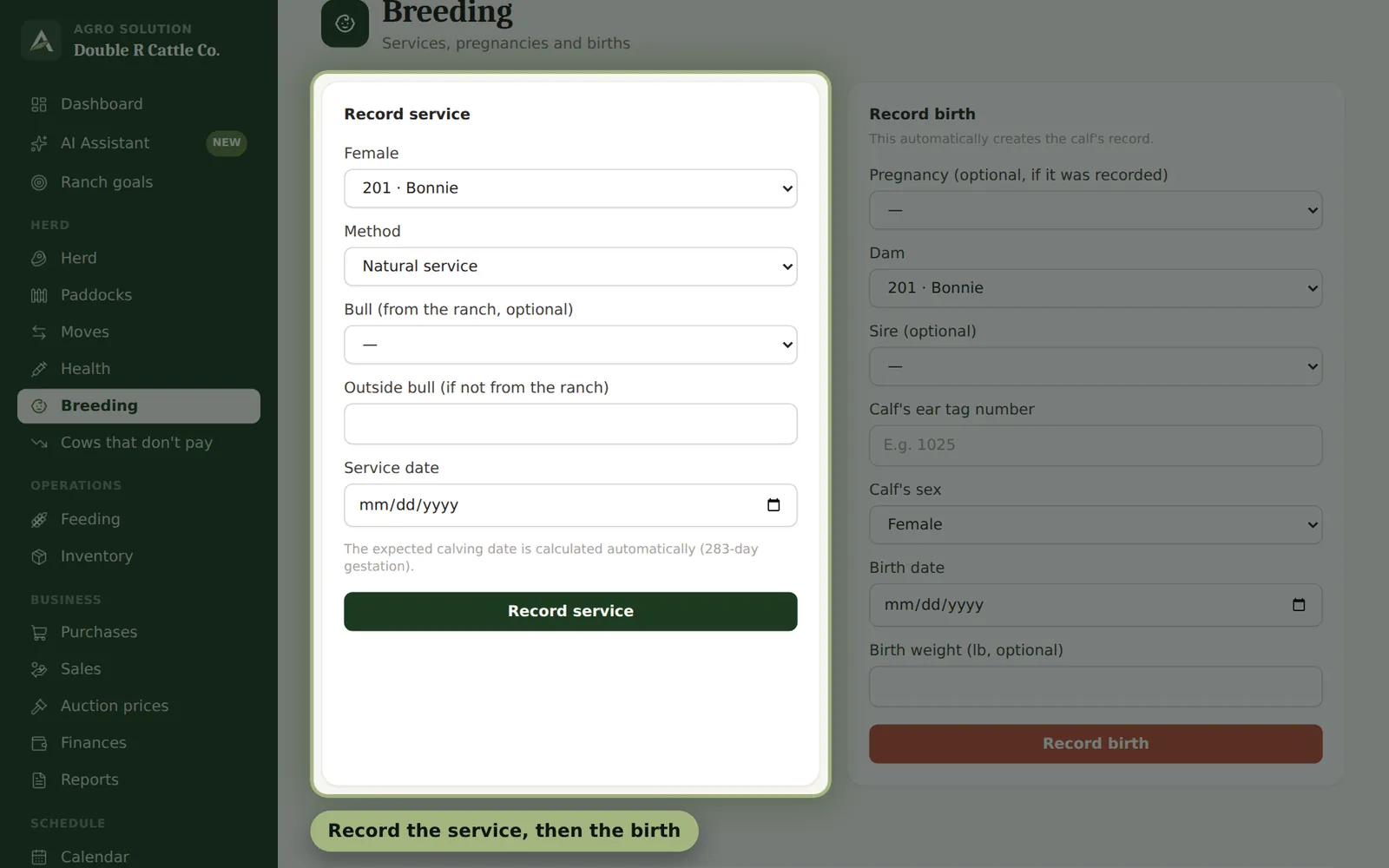
- 1In “Breeding”, record the service (natural or AI) and confirm the pregnancy after palpation.
- 2The app estimates the calving date; record the birth and the calf is added to the herd.
- 3“Cows that don't pay” flags open cows, long calving intervals and light calves, and what they cost you per year.
06
Paddocks and the satellite map
Where your cattle are and how each pasture is doing.
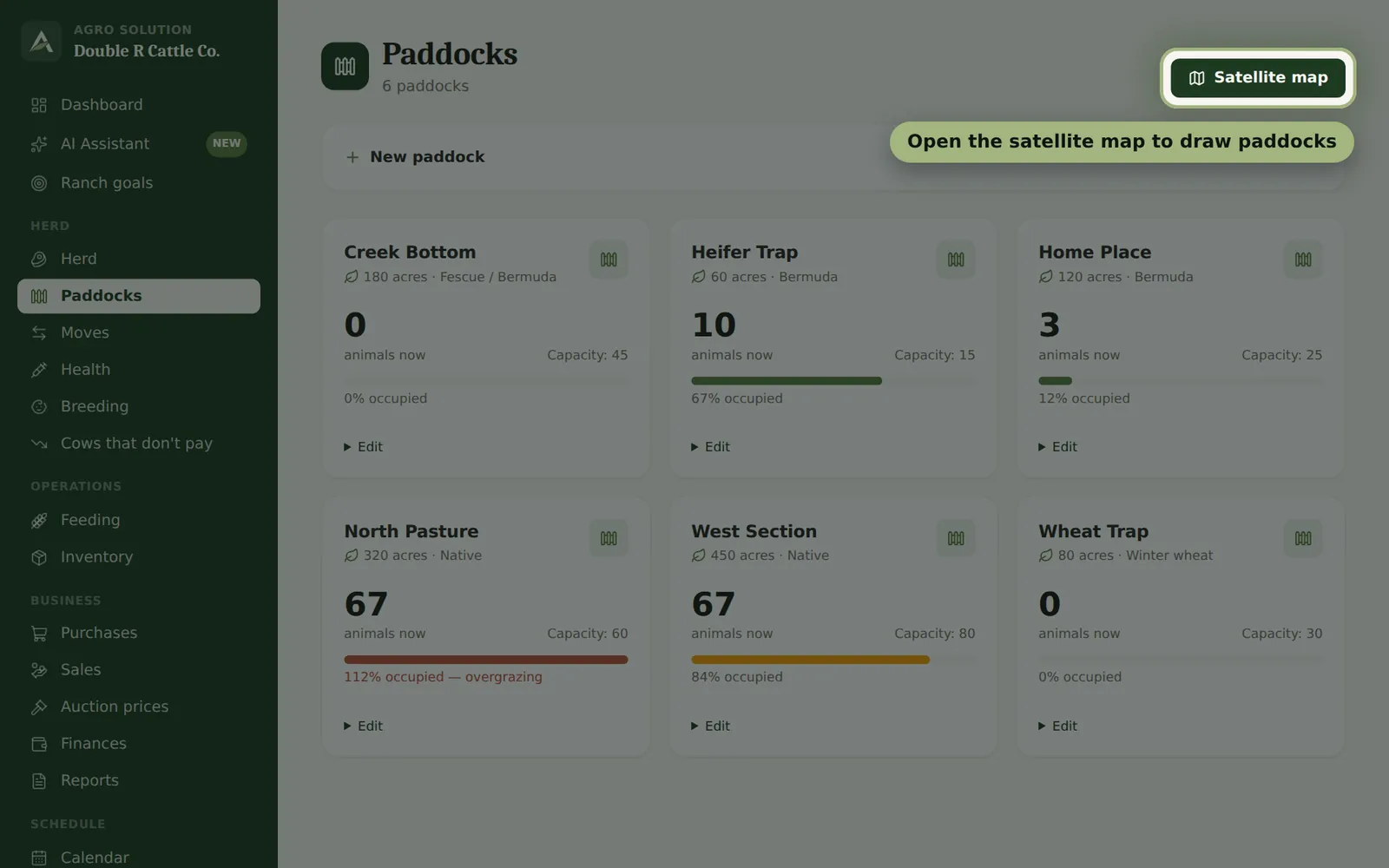
- 1Create your paddocks in “Paddocks” with their acres, grass and capacity.
- 2Move animals in “Moves”; the app keeps the history.
- 3Standard and Premium: open “Satellite map”, tap “Draw paddock” and tap each fence corner. Colors show overgrazing and resting paddocks.
07
Sales, auction prices and finances
What your cattle are worth and what your ranch earns.
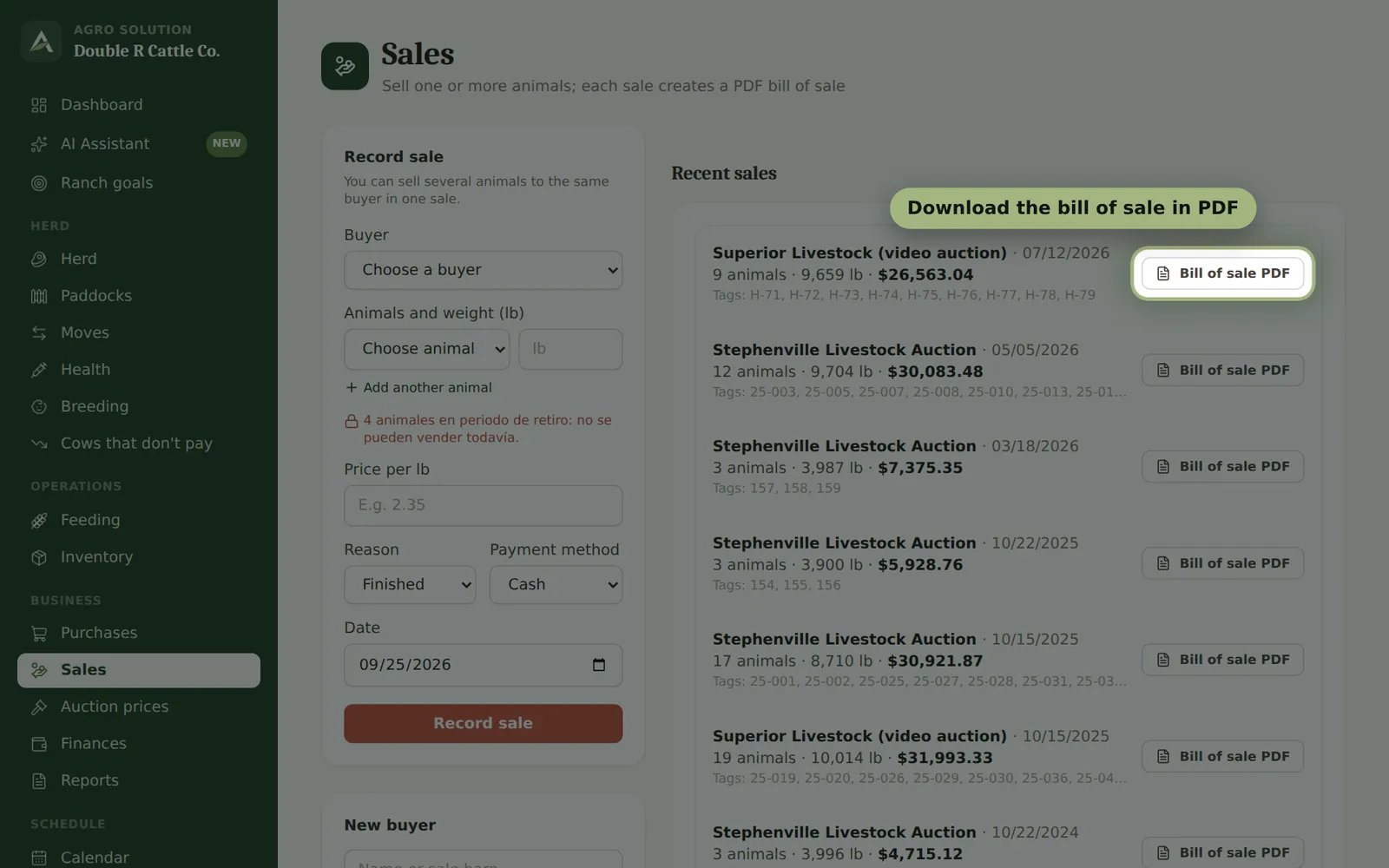
- 1In “Sales”, add one or more animals with their weight and price per lb; download the bill of sale in PDF.
- 2“Auction prices” uses USDA Market News from your reference sale barn to estimate your herd's value.
- 3Record purchases and expenses; “Finances” shows income, costs and profit by month. “Reports” exports to Excel.
08
Feeding and inventory
Hay, cubes, mineral and supplies, with low-stock alerts.
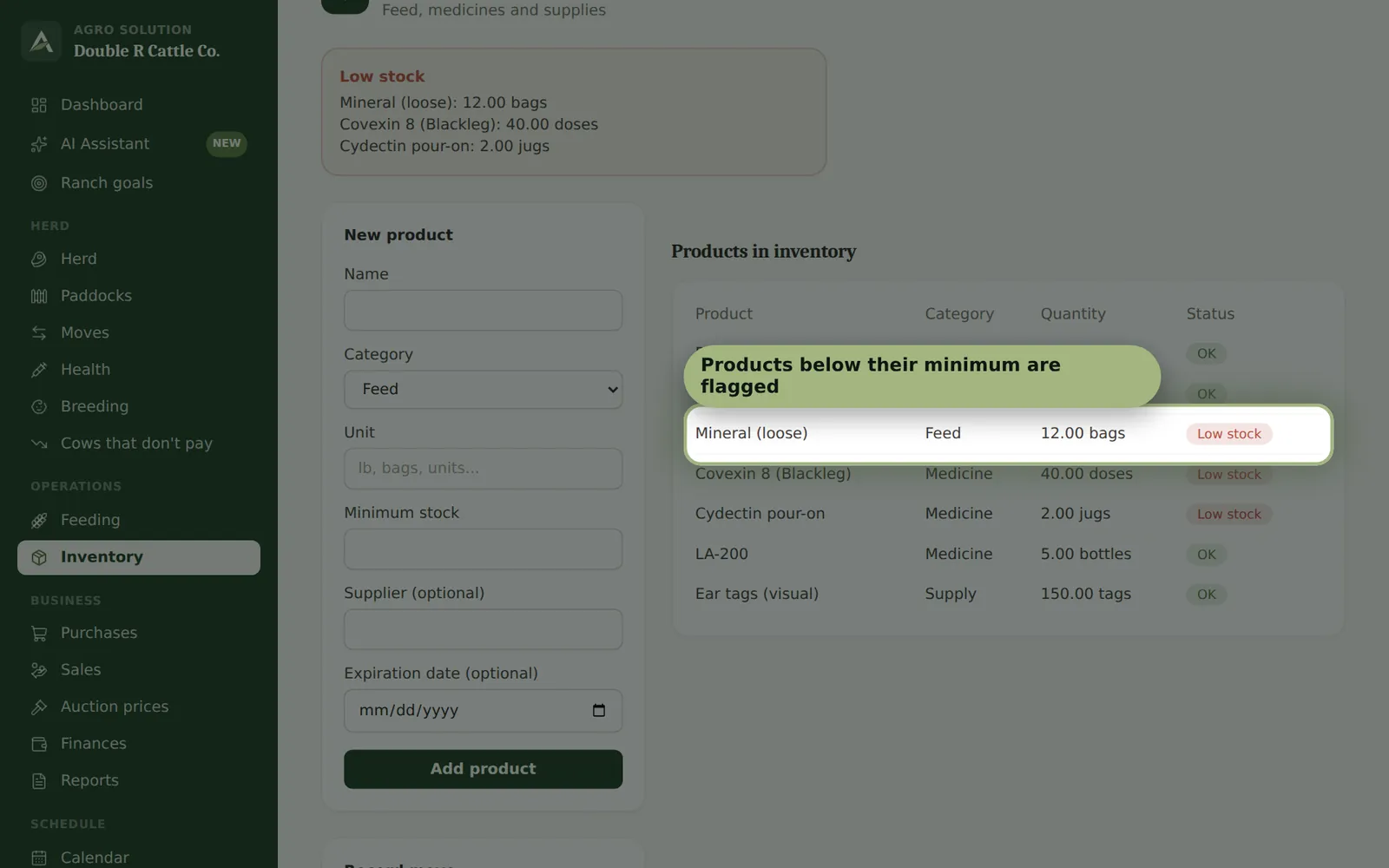
- 1Record what you feed in “Feeding”.
- 2Keep stock and minimums in “Inventory”; you'll get an alert when something runs low.
09
AI assistant and voice
Ask questions or record things by talking, from the field.
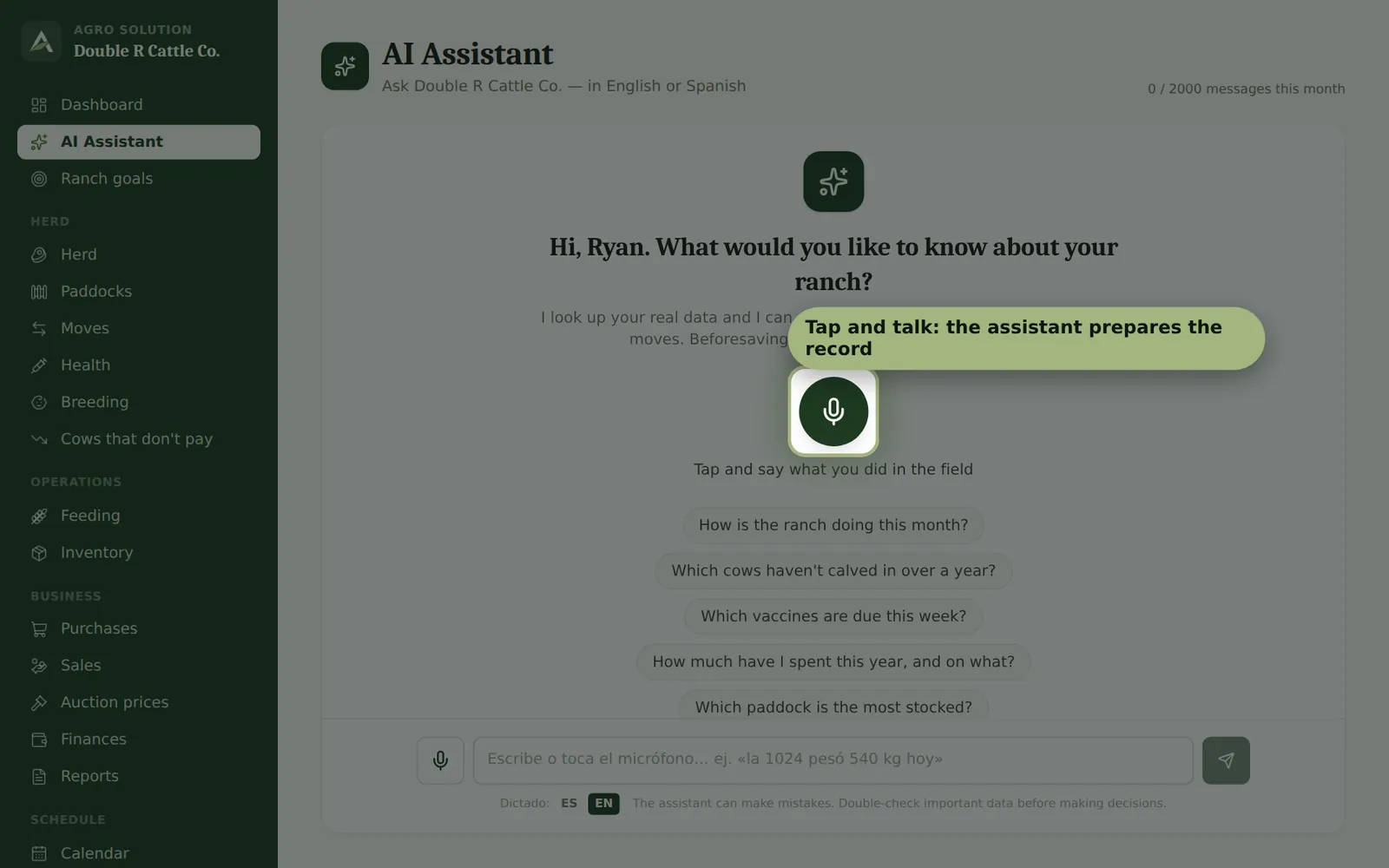
- 1Tap the microphone button and say, for example, “1024 weighed 580 pounds” or “vaccinated 1030 with Covexin”.
- 2The assistant prepares the record and you confirm it with a button. Nothing is saved without your OK.
- 3Ask things like “which cows are open?” or “what's my herd worth?” — it answers with your ranch's data.
10
Ranch goals and milk
Standard and Premium: set goals and get a plan to reach them.
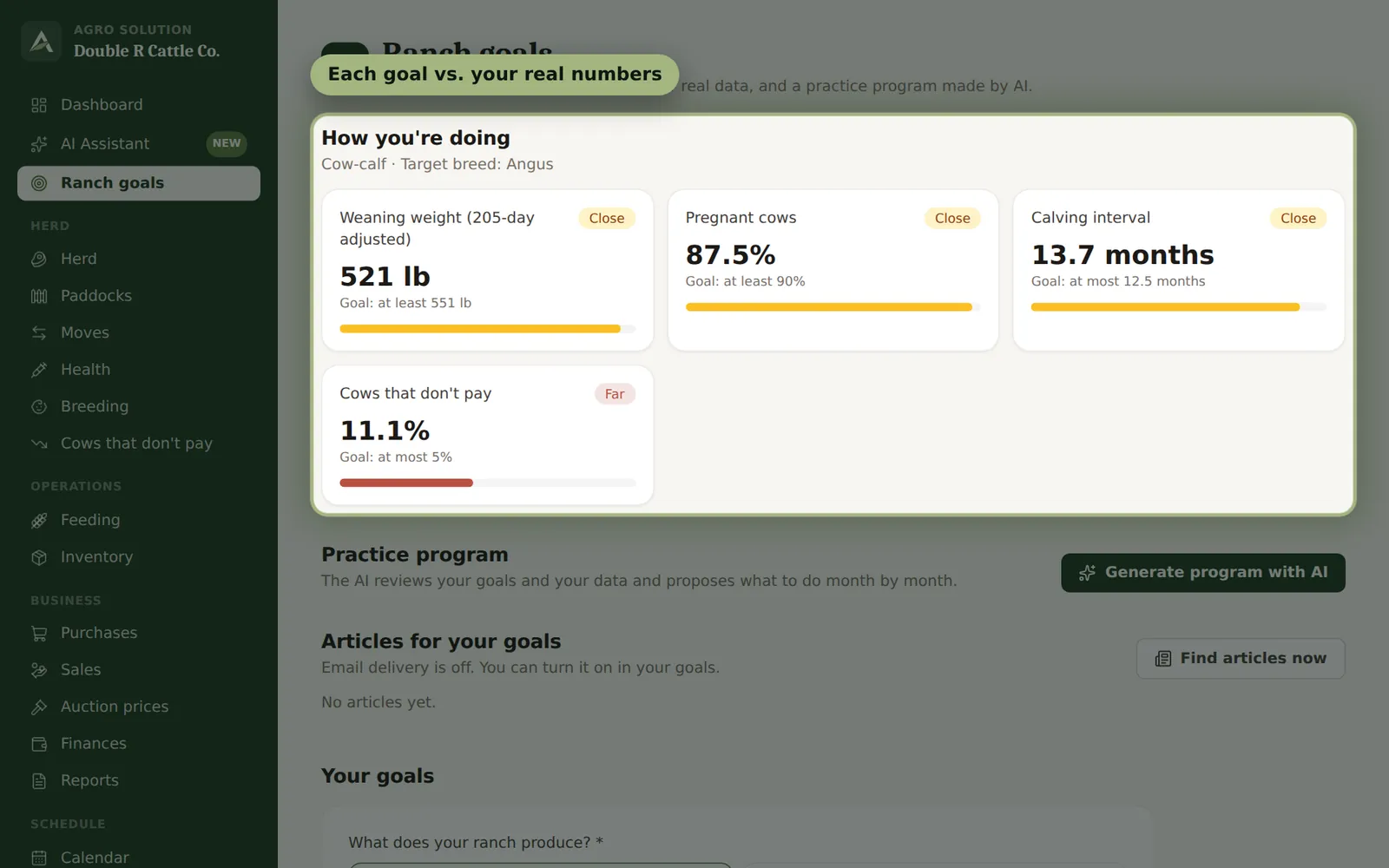
- 1In “Ranch goals”, choose what you produce, your target breed and your goals.
- 2“How you're doing” compares each goal with your real numbers; generate the AI practice program for a month-by-month plan.
- 3Dairies: record each milking in “Milk” to track pounds per cow and trends.
11
Alerts and calendar
What needs your attention, before it becomes a problem.
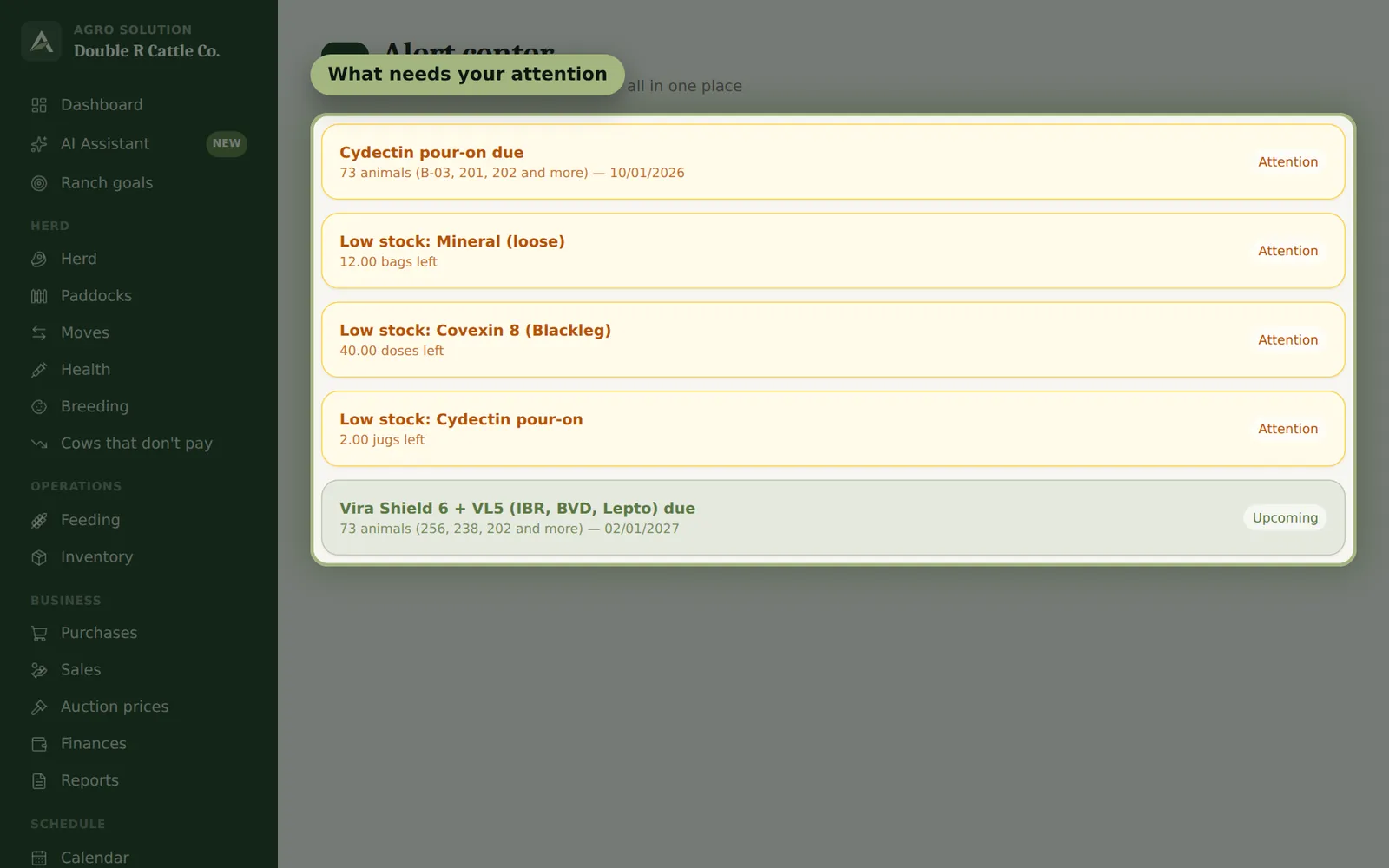
- 1“Alerts” lists overdue vaccines, upcoming calvings, low stock and more.
- 2“Calendar” shows upcoming applications and calvings by date.
- 3Depending on your plan, alerts also arrive by email, WhatsApp and text message.
Want to try it yourself?
We'll give you a demo ranch with three years of history.